
How to Setup IPTV on MAG Box
Learn how to configure IPTV on MAG, TVIP, Formuler and other Stalker Portal devices. Follow this simple guide to activate your IPTV subscription and start streaming quickly.
It is simple to configure your MAG device for IPTV streaming. Regardless of the device you use, MAG, TVIP box, Formuler, or any other device that uses the Stalker Portal method, this tutorial will guide you through the setup process.
You will be ready to stream your IPTV channels and content in a few minutes if you follow the steps below.
Step 1: Send Your MAC Address
Before the IPTV setup can begin, you need to send us your device’s MAC address. This address is a unique identifier for your MAG device.
Locate Your MAC Address
- Turn on your MAG device.
- Go to Settings or About.
- Find the MAC address displayed on the screen or on the back of your device.
- The MAC address format looks like this: 00:1A:2B:3C:4D:5E.
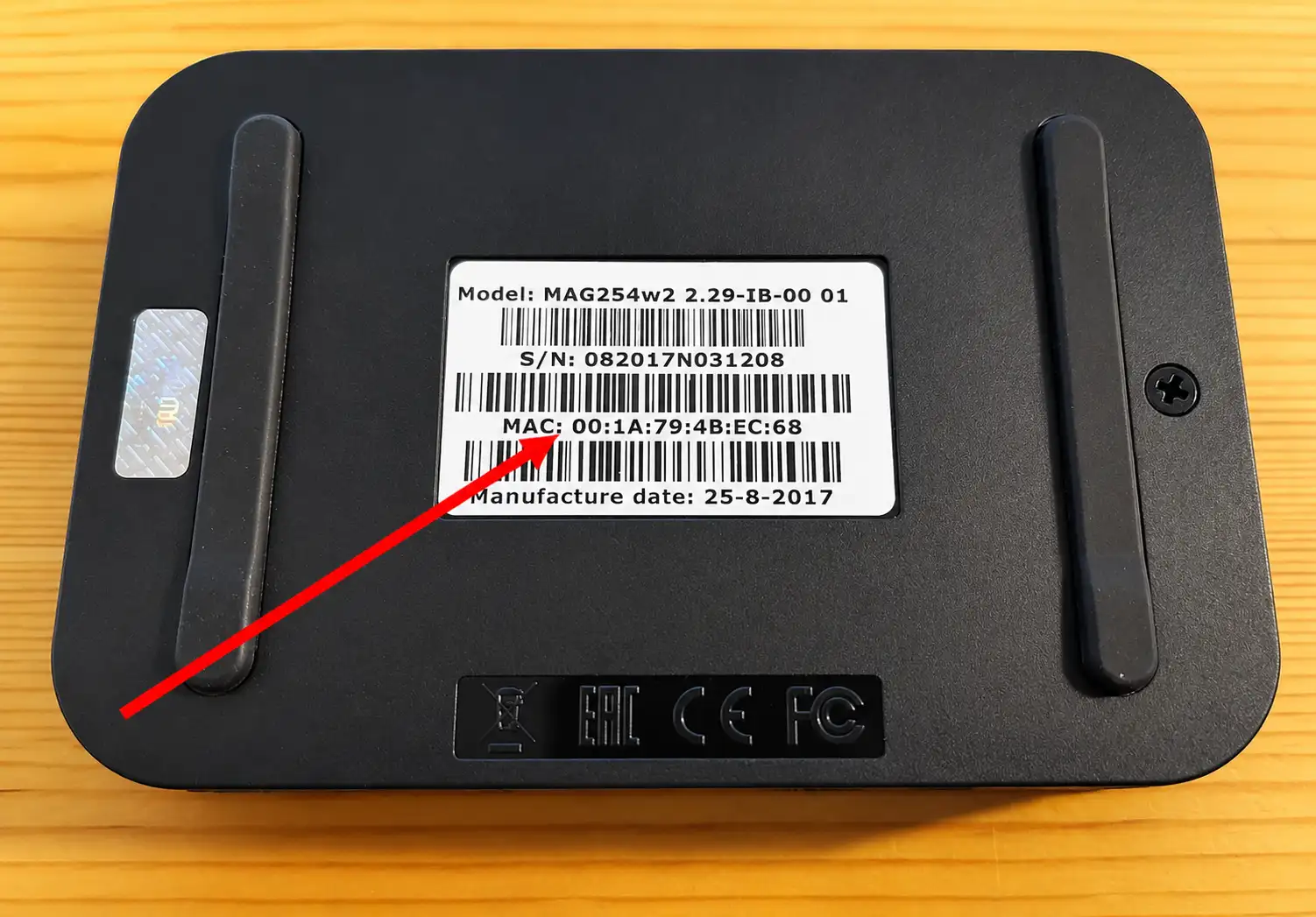
Send us your MAC address by Email or WhatsApp together with your order ID. Make sure to specify your device type, for example MAG, Formuler, or TVIP box.
Once we receive your MAC address, we will send you the portal URL needed to configure your device.
Step 2: Configure Your Device
After receiving the portal URL from us, you can continue with the device setup. Follow these steps carefully.
Access System Settings
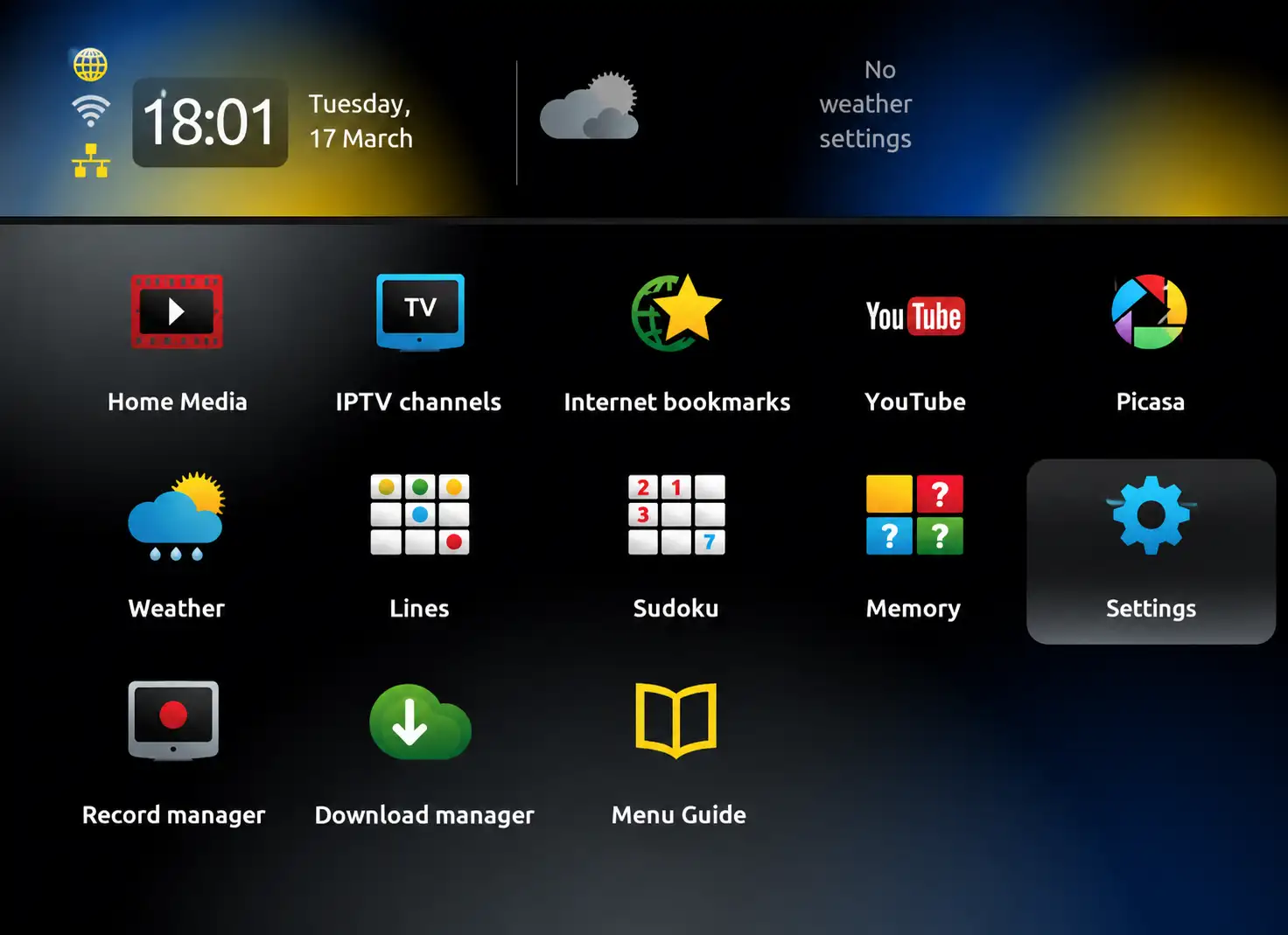
- Open your MAG home screen.
- Go to Settings.
- Open System Settings.
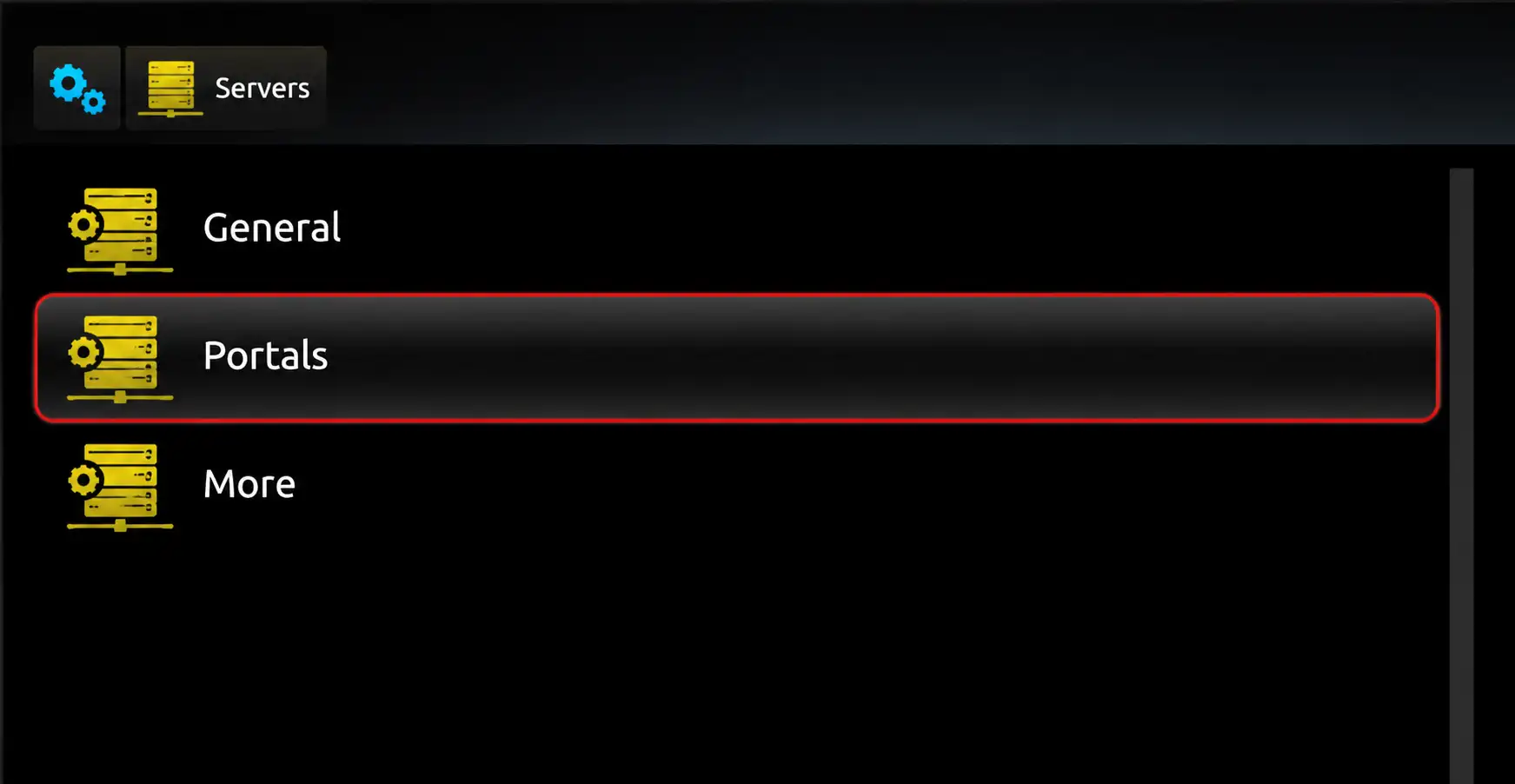
- Go to Servers.
- Select Portals.
Enter the Portal URL
- Under Portal 1 Name, enter any name you like, for example BangosPlay.
- Under Portal 1 URL, enter the URL we sent you by Email or WhatsApp.
- Make sure the URL is typed exactly as shown.
- Press OK to save the settings.
Important: the portal URL usually starts with http://. Type the full URL exactly, because one wrong character can stop the IPTV service from loading.
Step 3: Restart Your Device
After saving the portal URL, restart your MAG device. When the device turns back on, it should connect to the portal and load your IPTV channels automatically.
- Go back to the main menu.
- Restart the device.
- Wait for the portal to load.
- Your IPTV categories, live TV, movies, and series should appear.
Congratulations! Your MAG device is now set up and ready to stream your IPTV subscription.
Need Help with a Different Device?
If you have any problem configuring your device, contact our support team. We can help you set up IPTV on MAG, Formuler, TVIP box, Android, Firestick, Smart TV, Windows, iPhone, iPad, and more.
Final Tips
- Make sure your internet connection is stable to avoid buffering or loading issues.
- If you use WiFi, send the WiFi MAC address, not the Ethernet MAC address.
- If the portal does not load, check the MAC address you sent us for any typo.
- Double-check the portal URL and make sure it starts with http://.
- If your MAG is blocked by provider, contact support to verify your subscription status.
Need IPTV Setup Help?
Contact BangosPlay support and we will help you activate your MAG IPTV subscription quickly.
Contact Support