
How to Setup IPTV on Mac OS
Learn how to install IPTV Smarters Pro on Mac OS and log in with your IPTV subscription details to watch live TV, movies, sports and series directly on your Mac.
Setting up IPTV on your Mac OS can upgrade your streaming experience. With IPTV Smarters Pro, you can access live channels, movies and series directly from your Mac using the login details sent by your IPTV provider.
Step 1: Download IPTV Smarters Pro for Mac OS
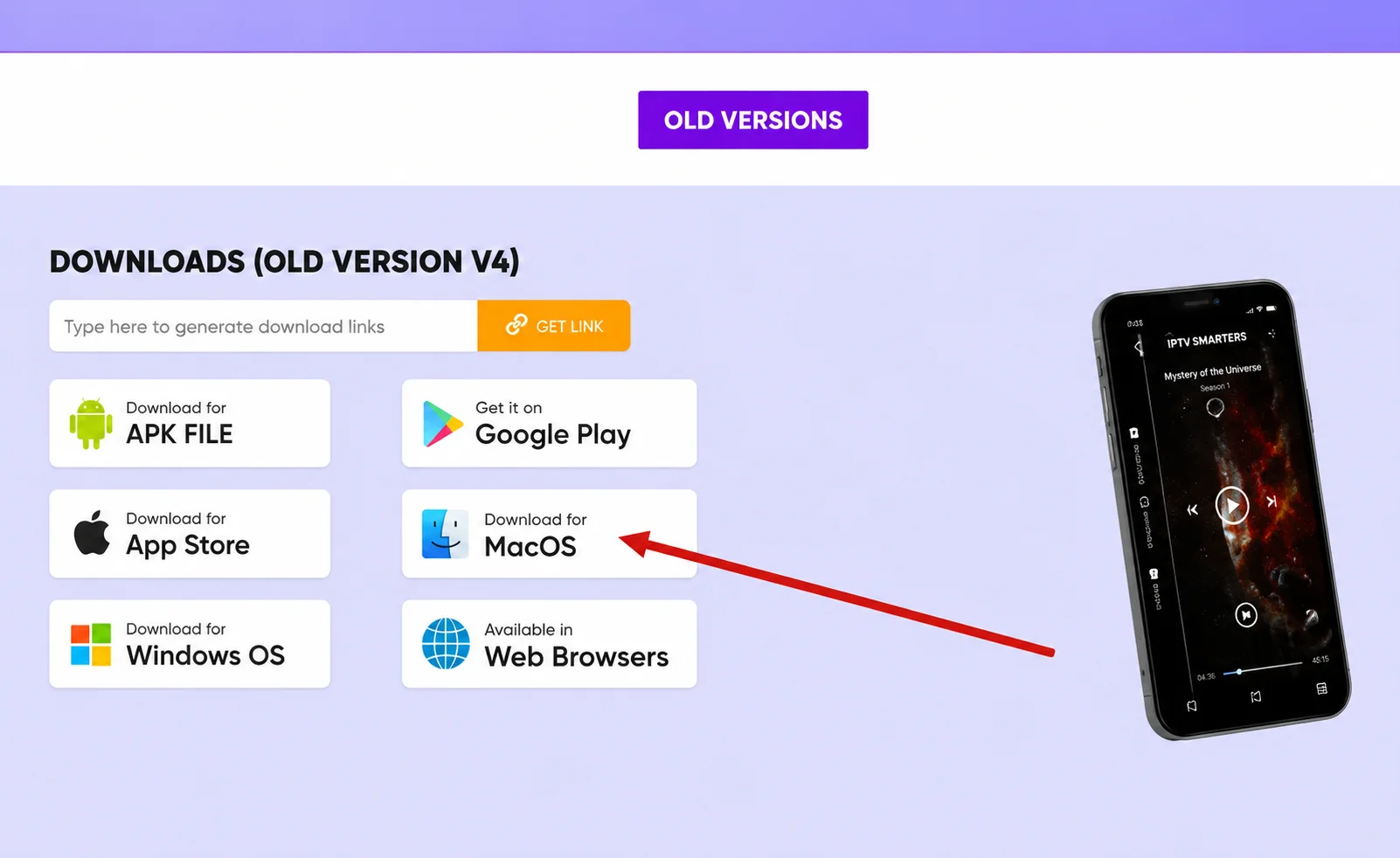
First, download the Mac version of IPTV Smarters Pro from the official download page or from the link provided by your IPTV provider.
Step 2: Enable Installation from Unidentified Developers
Mac OS may block apps from unidentified developers. If the app does not open, allow it from your Mac security settings.
- Click the Apple menu and open System Settings.
- Go to Privacy & Security.
- Find the blocked app message and click Open Anyway.
- Enter your Mac password if required.
- Open IPTV Smarters Pro again.
If you use an older Mac OS version, the option may appear under System Preferences → Security & Privacy.
Step 3: Install IPTV Smarters Pro
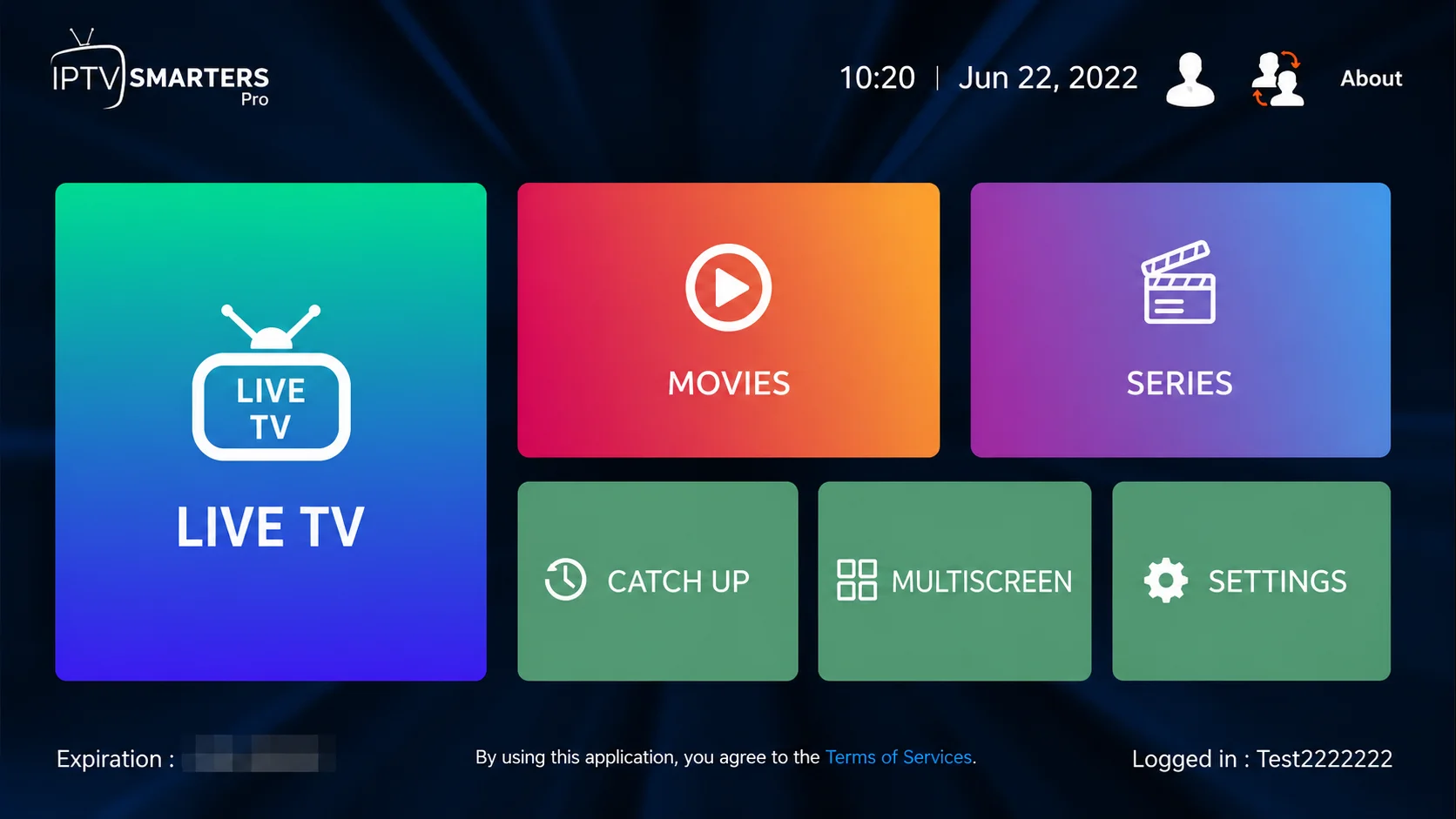
- Open your Downloads folder.
- Find the IPTV Smarters Pro installation file.
- Double-click the file and follow the installation steps.
- When installation is complete, open your Applications folder.
- Double-click IPTV Smarters Pro to launch it.
Step 4: Enter Your IPTV Subscription Details
After opening the app, choose Login with Xtream Codes API and enter the IPTV details you received by email or WhatsApp.
- First box: Profile name. You can put anything.
- Second box: Your username.
- Third box: Your password.
- Fourth box: Server URL. It usually starts with
http://orhttps://.
Click Add User or Login. The app will load your live TV channels, movies, series and TV guide automatically.
Troubleshooting
Authorization Failed
- Check that your username and password are typed correctly.
- Make sure the server URL is complete.
- Try turning off your VPN.
- Confirm that your IPTV subscription is active.
App Does Not Open
Go back to Privacy & Security and click Open Anyway, then launch the app again.
Conclusion
IPTV setup on Mac OS is simple when you have the correct app and login details. Download IPTV Smarters Pro, allow the app from your Mac security settings, install it, then log in with your Xtream Codes API details.
Need Help Setting Up IPTV on Mac OS?
Contact BangosPlay support and we will help you install IPTV on Mac OS, configure IPTV Smarters Pro, add your Xtream Codes login details, and solve any streaming or login issues quickly.
Contact Support